

Total cost shown is wrong at checkout
Type of Test
Checkout
Agents used

Bug Impact Potential
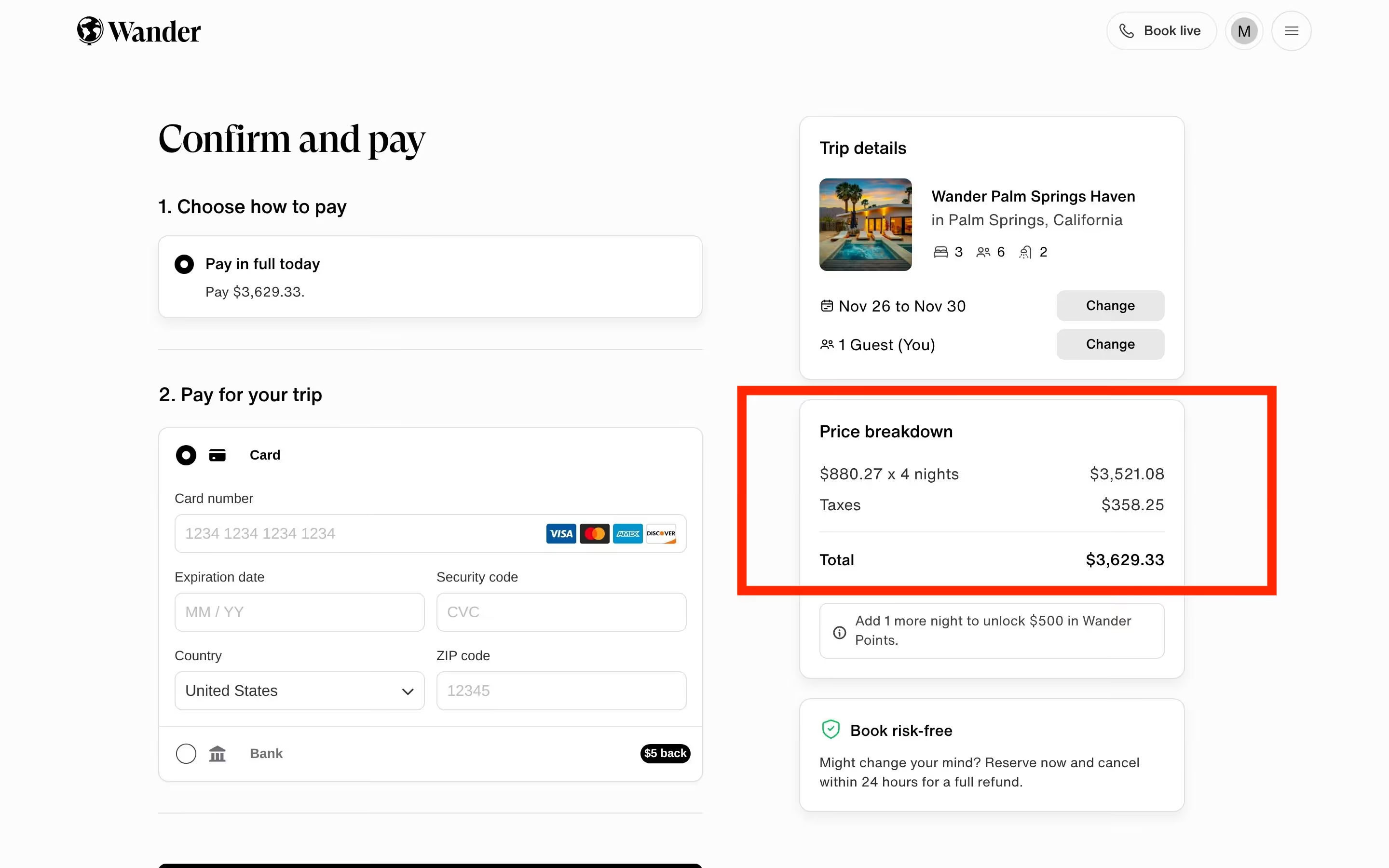
CRITICAL - Financial calculation error causing $250 discrepancy in booking costs. This directly impacts revenue accuracy and could result in financial losses, customer disputes, and loss of trust. The bug affects the core booking checkout process where payment calculations are performed.


Step the Agent Failed on:
- 14 Confirm that the total cost is calculated correctly
End-to-end checkout Flow
Full Test That Was Run:
The total cost calculation is incorrect. The subtotal ($3,521.08) plus taxes ($358.25) should equal $3,879.33, but the system displays $3,629.33, resulting in a $250 discrepancy. This pricing error could lead to customer confusion, lost revenue, and potential chargebacks if customers notice the discrepancy after completing their purchase.
The total cost calculation is incorrect. The subtotal ($3,521.08) plus taxes ($358.25) should equal $3,879.33, but the system displays $3,629.33, resulting in a $250 discrepancy. This pricing error could lead to customer confusion, lost revenue, and potential chargebacks if customers notice the discrepancy after completing their purchase.
- 1 Start typing a location (either a U.S. state or city or a city in Mexico) in the search field and confirm that location suggestions are displayed as you type
- 2 Choose a location from the search suggestions and verify it's correctly displayed
- 3 Select a valid check-in and check-out date. Ensure the check-in date is not today, and that the stay is at least 4 nights. After selecting the check-in date, wait for it to be confirmed or locked in before proceeding to select the check-out date
- 4 (Optional Step) If desired, select the number of guests for the booking and ensure the guest count is displayed correctly
- 5 Click the search button to submit the query
- 6 Verify that the search results show valid properties for the selected location and dates
- 7 Verify that the results are properly divided into List and Map views
- 8 Randomly choose a property from the search results list and wait for the page to load
- 9 Verify the property details page opens correctly without errors
- 10 Verify that the selected check-in and check-out dates are prefilled in the property's calendar
- 11 Scroll down and check that the "Reserve" button appears after valid dates are shown in the Checkin and checkout input area
- 12 Click the reserve button, wait for the page to load
- 13 Verify the Trip Summary page displays the correct location, dates, and guest count
- 14 Confirm that the total cost is calculated correctly, including any taxes or fees, on the checkout page, ensure that the payment form for entering card details is displayed

Bug Book
These are production bugs found for our actual customers
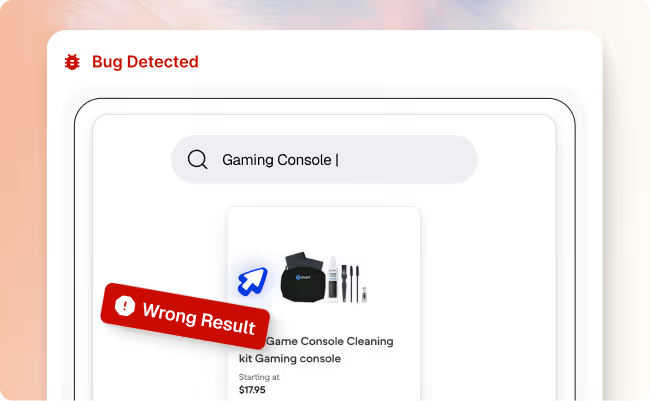

Search results for “gaming console” show accessories instead of consoles
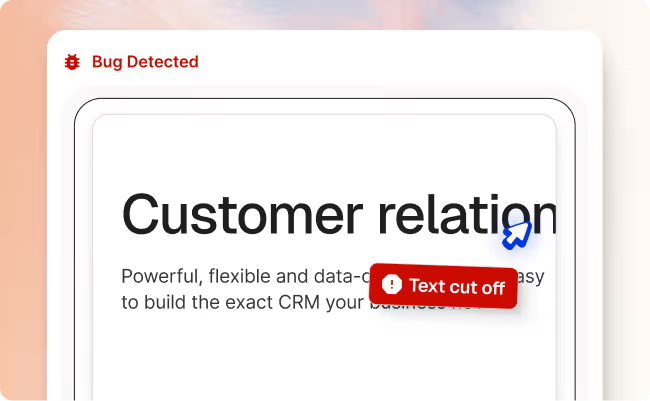

Multiple UI/UX inconsistencies on international pricing page
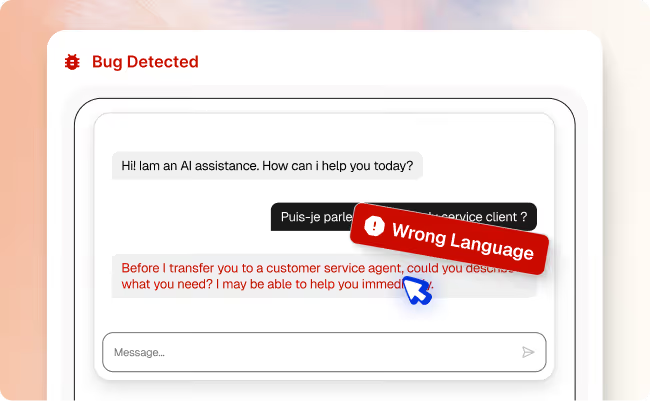

AI chat responds in English instead of French
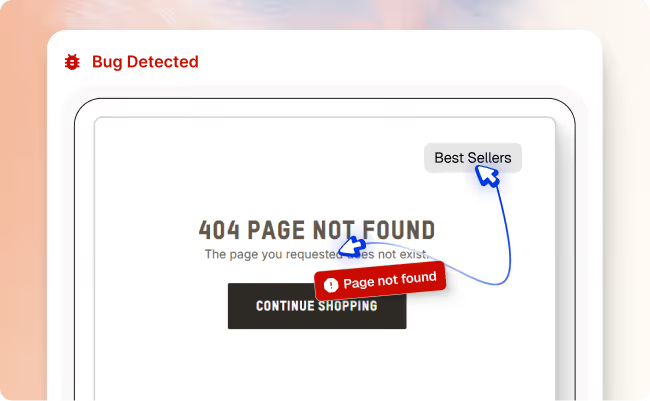

“Best Sellers” link in header leads to a 404 page
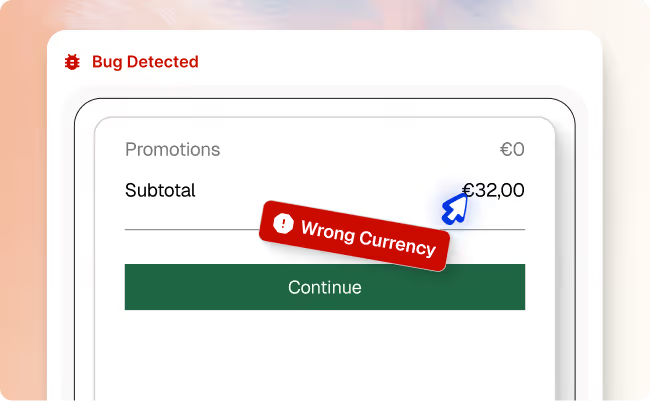
Checkout shows incorrect price or currency for Germany shoppers
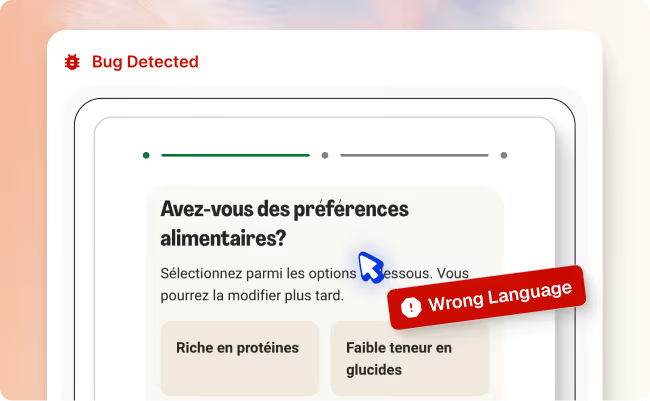
French (Belgium) users see incorrect language during checkout
.avif)
Chat responses fail during long conversations
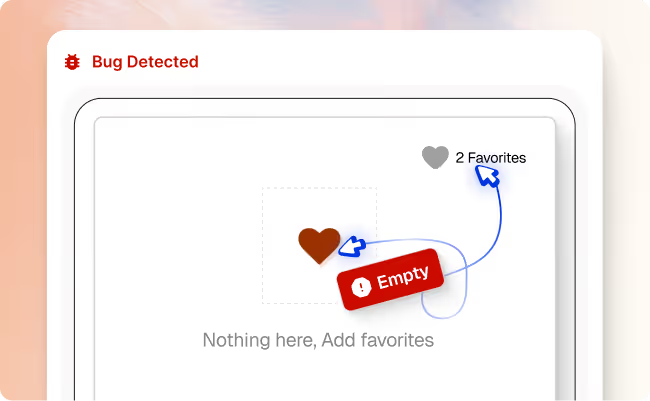
Liked Item Missing From Favorites
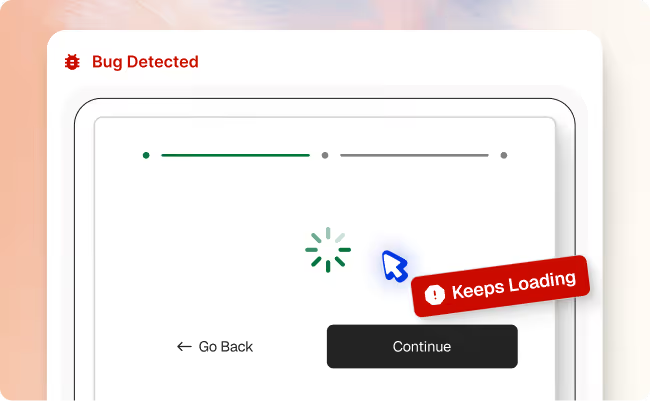
Meal selection page stuck loading
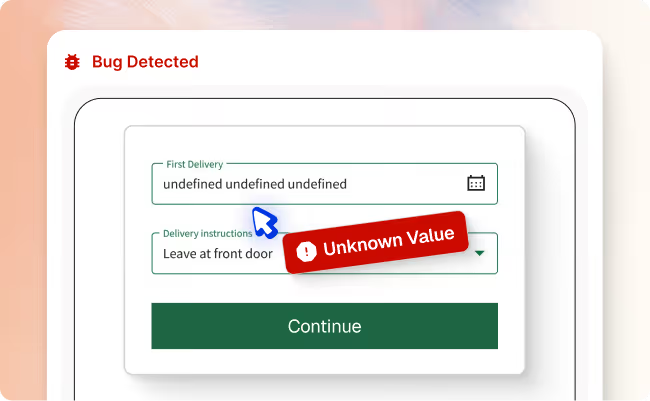
Delivery date is not displayed correctly
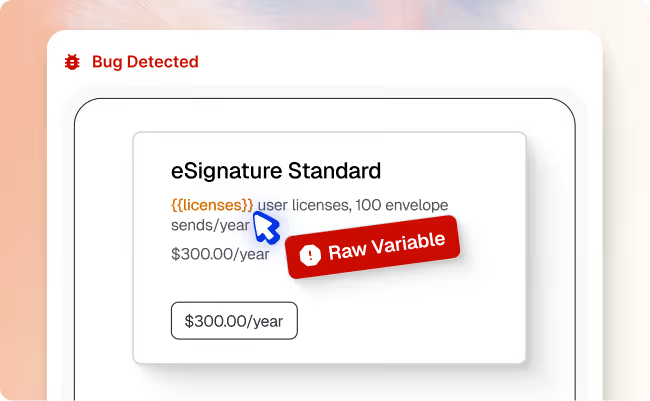
Subscription plan displays raw template text
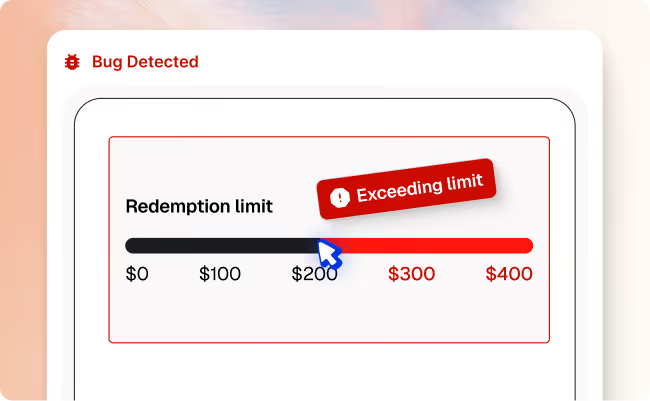

Rewards page shows incorrect annual redemption limit
Platform: Native Mobile App (Android)
Device: Pixel 4a
Android Version: 35
User Type: Tobacco Member
Test Result: Failed at step 5 - Points display configuration error
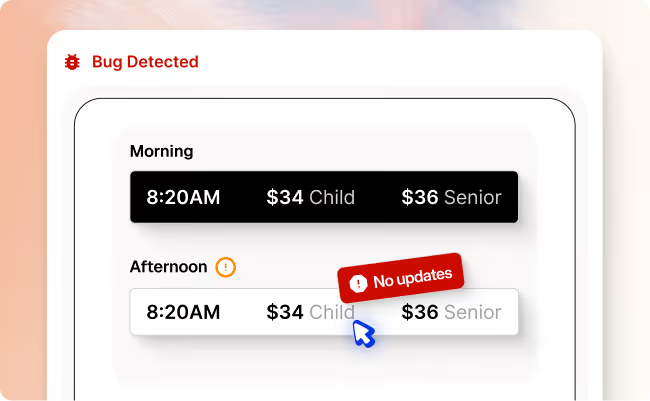
Afternoon time slots don’t appear when selected
Platform: Web Browser
Website: Rockefeller Center
Test Type: E2E Purchase Flow
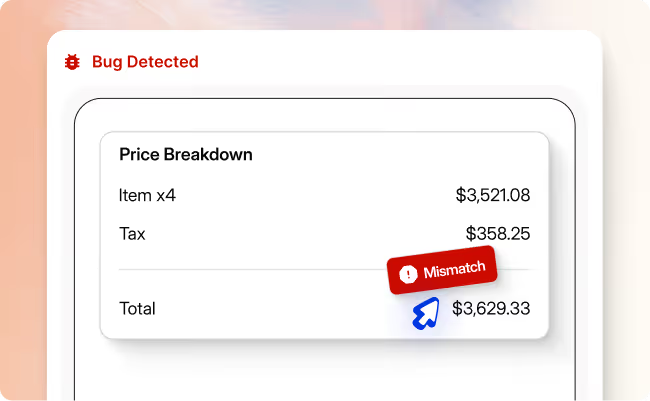
Total cost shown is wrong at checkout
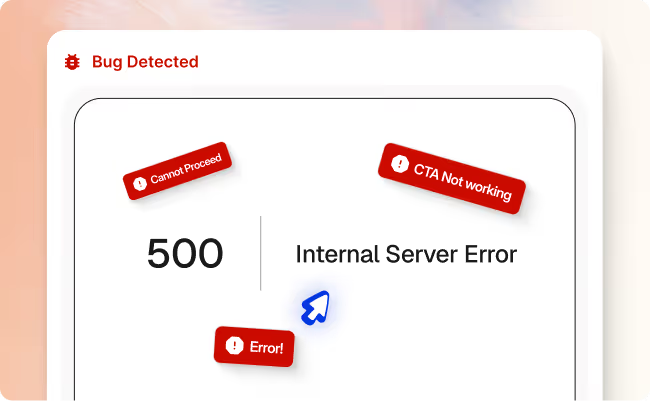
Checkout button leads to error page
Checkout completion rate, conversion rate, revenue
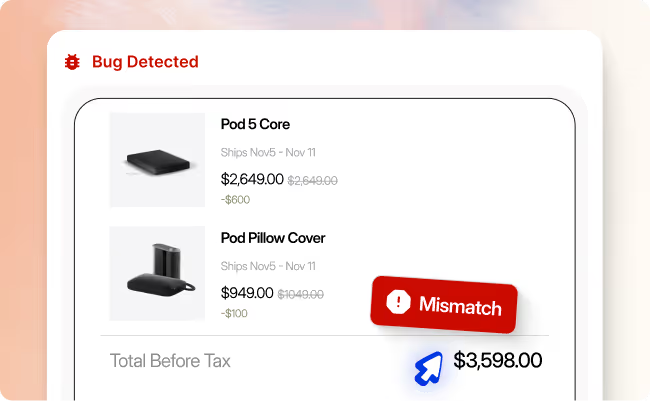
Checkout total is higher than expected
Revenue accuracy, pricing accuracy, discount validation, checkout conversion rate
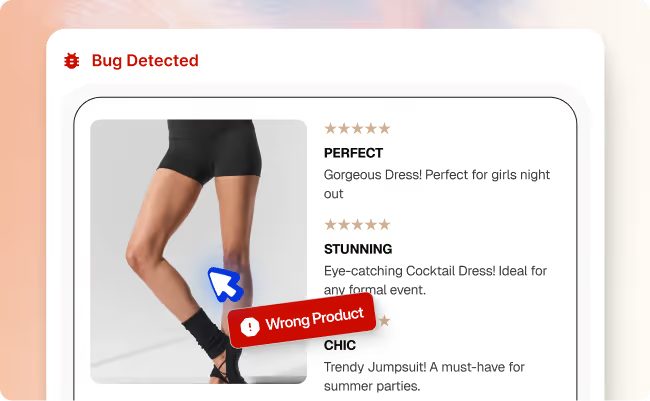
Reviews reference a different item (dress) on shorts page
- Prevented over $400k in lost sales
- Automated 21 hours in dev time on the bug
Schedule a Demo
We invite you to try us out with our new Pilot Program